
Switching devices, changing email platforms, or organizing your digital life can feel overwhelming. One task that many people struggle with is moving their contact list into Gmail correctly. The good news is that learning how to upload contacts to Gmail is far easier than most people expect.
Whether you recently bought a new smartphone, changed your email provider, or simply want all your contacts stored safely in one place, Gmail makes the process surprisingly simple. In just a few minutes, you can import hundreds or even thousands of contacts without manually typing every name and phone number.
This guide explains how to upload contacts to Gmail in 5 easy steps using beginner-friendly instructions. Even if you are not particularly tech-savvy, you will be able to complete the process smoothly.
In addition, you will learn useful tips about contact management, syncing contacts across devices, fixing import errors, organizing your Gmail address book, and keeping your contact data secure.
Let’s get started.
Why Learning How to Upload Contacts to Gmail Matters
Before diving into the steps, it helps to understand why Gmail contact management is important in the first place.
Today, most people use multiple devices:
- Android phones
- iPhones
- Tablets
- Laptops
- Desktop computers
Without proper syncing, contact information can become scattered everywhere. Some numbers stay on your SIM card, others remain inside old phones, while some exist only in outdated email accounts.
When you understand how to upload contacts to Gmail, you create a centralized cloud-based contact system that works across devices.
Major Benefits of Uploading Contacts to Gmail
| Benefit | Explanation |
|---|---|
| Easy Backup | Your contacts stay protected in Google Cloud |
| Device Syncing | Contacts appear automatically across devices |
| Faster Communication | Easier access through Gmail and Android |
| Better Organization | Create labels and groups efficiently |
| Data Recovery | Restore deleted contacts when needed |
| Cross-Platform Access | Access contacts anywhere |
Moreover, Gmail contact storage reduces the risk of losing important phone numbers if your device gets damaged or stolen.
Step 1: Prepare Your Contact File
The first step in learning how to upload contacts to Gmail is preparing your contact list correctly.
Gmail usually accepts contact files in these formats:
- CSV files
- vCard files (.vcf)
CSV stands for Comma-Separated Values, which is one of the most common contact export formats.
How to Export Contacts From Another Device
Depending on your device, the export process may vary slightly.
Exporting Contacts From Android
- Open the Contacts app
- Tap Settings
- Select Export Contacts
- Save the file as CSV or VCF
Exporting Contacts From iPhone
- Use iCloud or a third-party export tool
- Export contacts as a vCard file
- Save the file on your computer
Exporting Contacts From Outlook
- Open Outlook
- Go to File
- Select Open & Export
- Choose Import/Export
- Export as CSV
Preparing the file correctly is extremely important because formatting errors can cause missing names, duplicate contacts, or failed imports.
Step 2: Open Google Contacts
The second step in how to upload contacts to Gmail involves accessing Google Contacts.
Many people mistakenly try importing directly inside Gmail. However, Google Contacts is actually the correct location.
Accessing Google Contacts
Follow these steps:
- Open your browser
- Sign into your Gmail account
- Open Google Contacts
- Make sure you are using the correct Google account
Once inside, you will see options for:
- Importing contacts
- Exporting contacts
- Creating labels
- Managing duplicates
- Editing address book information
This dashboard becomes your central contact management system.
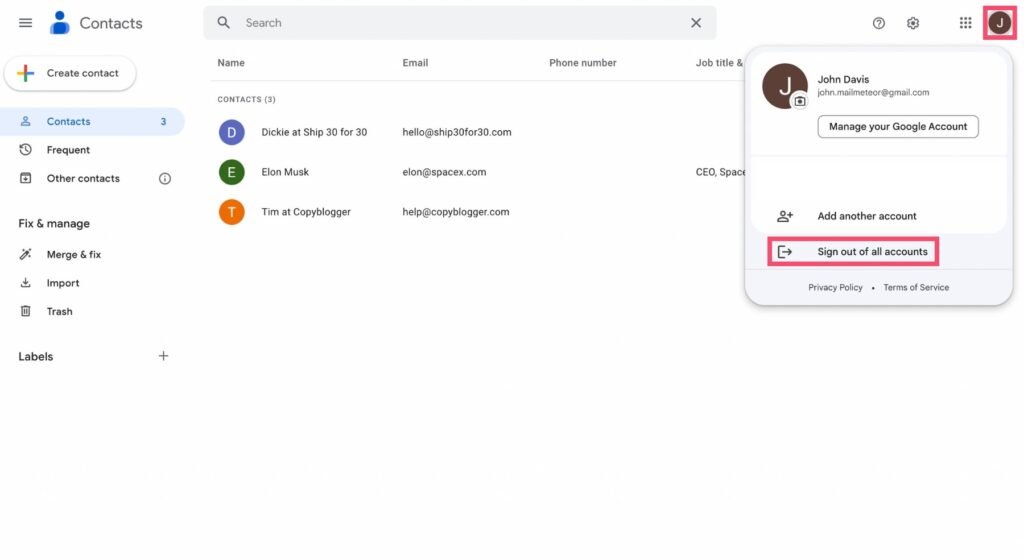
Understanding the Gmail Contacts Interface
If you are new to Gmail contact management, the dashboard may initially feel unfamiliar.
Here are the key sections:
Contacts
This is your main contact list containing names, phone numbers, and email addresses.
Frequent Contacts
Google automatically stores frequently contacted people here.
Labels
Labels help organize contacts into categories such as:
- Family
- Friends
- Clients
- Coworkers
- School contacts
Merge & Fix
This feature helps remove duplicate contacts automatically.
Understanding these features makes learning how to upload contacts to Gmail even more valuable because organization becomes easier afterward.
Step 3: Click the Import Option
Now comes the actual importing stage.
On the left side of Google Contacts, you will find the Import button.
Importing Your File
Follow these instructions carefully:
- Click Import
- Select your CSV or VCF file
- Upload the file from your device
- Wait for processing to finish
The upload usually takes only a few seconds unless your contact database is extremely large.
Once complete, Gmail automatically adds your imported contacts into your Google account.
This step is the core part of understanding how to upload contacts to Gmail successfully.
Common Import Problems and Solutions
Although the process is simple, users occasionally experience issues.
Here are the most common problems.
Duplicate Contacts
Sometimes Gmail imports repeated entries.
Solution:
Use the Merge & Fix feature inside Google Contacts.
Missing Phone Numbers
Incorrect CSV formatting may cause data loss.
Solution:
Check that columns are labeled correctly before importing.
Unsupported File Format
Gmail only supports certain file types.
Solution:
Convert unsupported files into CSV or VCF format.
Incorrect Character Display
Special symbols or foreign-language characters may appear broken.
Solution:
Save the CSV file using UTF-8 encoding.
These small troubleshooting steps can save significant frustration later.
Step 4: Organize Your Imported Contacts
After learning how to upload contacts to Gmail, the next important step is organization.
Uploading contacts without organizing them can quickly create clutter.
Fortunately, Gmail provides several useful tools.
Create Contact Labels
Labels work similarly to folders.
You can create groups like:
- Work
- Personal
- Customers
- Relatives
- Business partners
How to Create Labels
- Click Create Label
- Name the label
- Assign contacts to the category
This makes searching much easier later.
Remove Duplicate Contacts
Duplicate entries are common after importing contacts from multiple devices.
Google Contacts offers automatic cleanup tools.
Using Merge & Fix
- Open Merge & Fix
- Review suggested duplicates
- Confirm merges
This helps maintain a clean and professional contact list.
Add Extra Information
Another advantage of Gmail contact management is customization.
You can add:
- Birthdays
- Notes
- Company names
- Addresses
- Secondary phone numbers
- Profile photos
These details improve organization significantly.
Step 5: Sync Contacts Across Devices
The final step in how to upload contacts to Gmail is enabling synchronization.
Once syncing is activated, your contacts automatically appear on all connected devices.
Sync Gmail Contacts on Android
Android devices usually sync automatically.
However, you can verify manually:
- Open Settings
- Select Accounts
- Choose Google
- Enable Contact Sync
Sync Gmail Contacts on iPhone
For iPhones:
- Open Settings
- Go to Contacts
- Select Accounts
- Add Gmail account
- Turn on Contacts sync
Now your Gmail contacts will appear directly inside the iPhone Contacts app.
Best Practices for Gmail Contact Management
Learning how to upload contacts to Gmail is only the beginning. Proper maintenance keeps your address book useful long-term.
Regularly Backup Contacts
Even though Google Cloud is reliable, backups remain smart.
Export your contacts periodically as:
- CSV files
- VCF files
This provides additional security.
Keep Information Updated
Outdated phone numbers create confusion.
Every few months:
- Remove inactive contacts
- Update business information
- Fix outdated email addresses
A clean contact list improves productivity.
Use Labels Consistently
Many users create labels but never maintain them.
Consistent labeling makes Gmail far more efficient.
For example:
| Label | Purpose |
|---|---|
| Family | Personal relatives |
| Work | Office communication |
| Clients | Business customers |
| Friends | Social contacts |
| Emergency | Important contacts |
How Gmail Contacts Improve Productivity
Many people underestimate how powerful Gmail contact management can be.
When you master how to upload contacts to Gmail, daily communication becomes smoother.
Faster Email Suggestions
Gmail automatically suggests recipients while typing.
This saves time significantly.
Better Smartphone Integration
Android devices especially benefit from Google contact syncing.
Features include:
- Caller identification
- Automatic backup
- Calendar integration
- Messaging sync
Improved Business Communication
Professionals often use Gmail contact labels for client management.
This helps organize:
- Leads
- Vendors
- Employees
- Customers
- Freelancers
Efficient contact organization improves workflow dramatically.
Security Tips for Gmail Contacts
Your contacts contain sensitive personal information. Protecting them matters.
Enable Two-Factor Authentication
Two-factor authentication adds extra security to your Google account.
This prevents unauthorized access.
Avoid Suspicious Apps
Some third-party contact tools may access your personal data.
Only use trusted applications.
Monitor Account Activity
Google allows you to review login history and connected devices.
Check activity regularly for unusual behavior.
Advanced Gmail Contact Features
Once you fully understand how to upload contacts to Gmail, you can explore advanced features.
Contact Recovery
Deleted contacts can often be restored within a limited timeframe.
This feature is extremely useful after accidental deletions.
Shared Google Contacts
Businesses sometimes share contact databases across teams.
This improves collaboration.
Contact Notes
Adding notes helps remember details about people.
Examples include:
- Meeting history
- Preferences
- Company information
- Important reminders
Small details improve professional communication.
Mistakes to Avoid When Uploading Contacts
Many beginners make avoidable mistakes during contact imports.
Importing Corrupted Files
Always verify files before uploading.
Forgetting to Remove Duplicates
Duplicate clutter creates confusion later.
Uploading to the Wrong Google Account
This happens more often than people realize.
Double-check your active Gmail account before importing.
Ignoring Sync Settings
Without syncing enabled, contacts may not appear on all devices.
Always verify synchronization afterward.
Why Gmail Remains Popular for Contact Storage
There are many contact management platforms available today. However, Gmail continues dominating because of its simplicity and reliability.
Key Advantages Include:
- Free cloud storage
- Cross-device compatibility
- Strong security
- Easy synchronization
- User-friendly interface
- Integration with Google services
Millions of users rely on Gmail daily for communication and contact organization.
Helpful Tips for Beginners
If this is your first time learning how to upload contacts to Gmail, these beginner tips may help.
Start With a Small Test File
Before importing hundreds of contacts, test with a few entries first.
This reduces mistakes.
Use Clear Contact Names
Avoid confusing nicknames or incomplete entries.
Proper formatting improves search results later.
Check Imported Data Carefully
After uploading, review:
- Phone numbers
- Email addresses
- Name formatting
- Duplicates
A quick review prevents future problems.
Final Thoughts on How to Upload Contacts to Gmail
Learning how to upload contacts to Gmail may sound technical at first, but the process is actually very beginner-friendly once broken into simple steps.
By preparing your contact file properly, accessing Google Contacts, importing your data correctly, organizing your address book, and enabling synchronization, you can build a reliable cloud-based contact system in just a few minutes.
More importantly, Gmail contact management helps simplify modern digital life. Instead of losing phone numbers across devices or manually rebuilding contact lists after phone upgrades, everything stays organized securely in one place.
Whether you are switching phones, moving from another email provider, or simply cleaning up your digital organization, understanding how to upload contacts to Gmail is a valuable skill that saves time, reduces stress, and improves communication efficiency.
Have you tried importing contacts into Gmail before? Share your experience, favorite contact management tips, or troubleshooting solutions with others and help make digital organization easier for everyone.